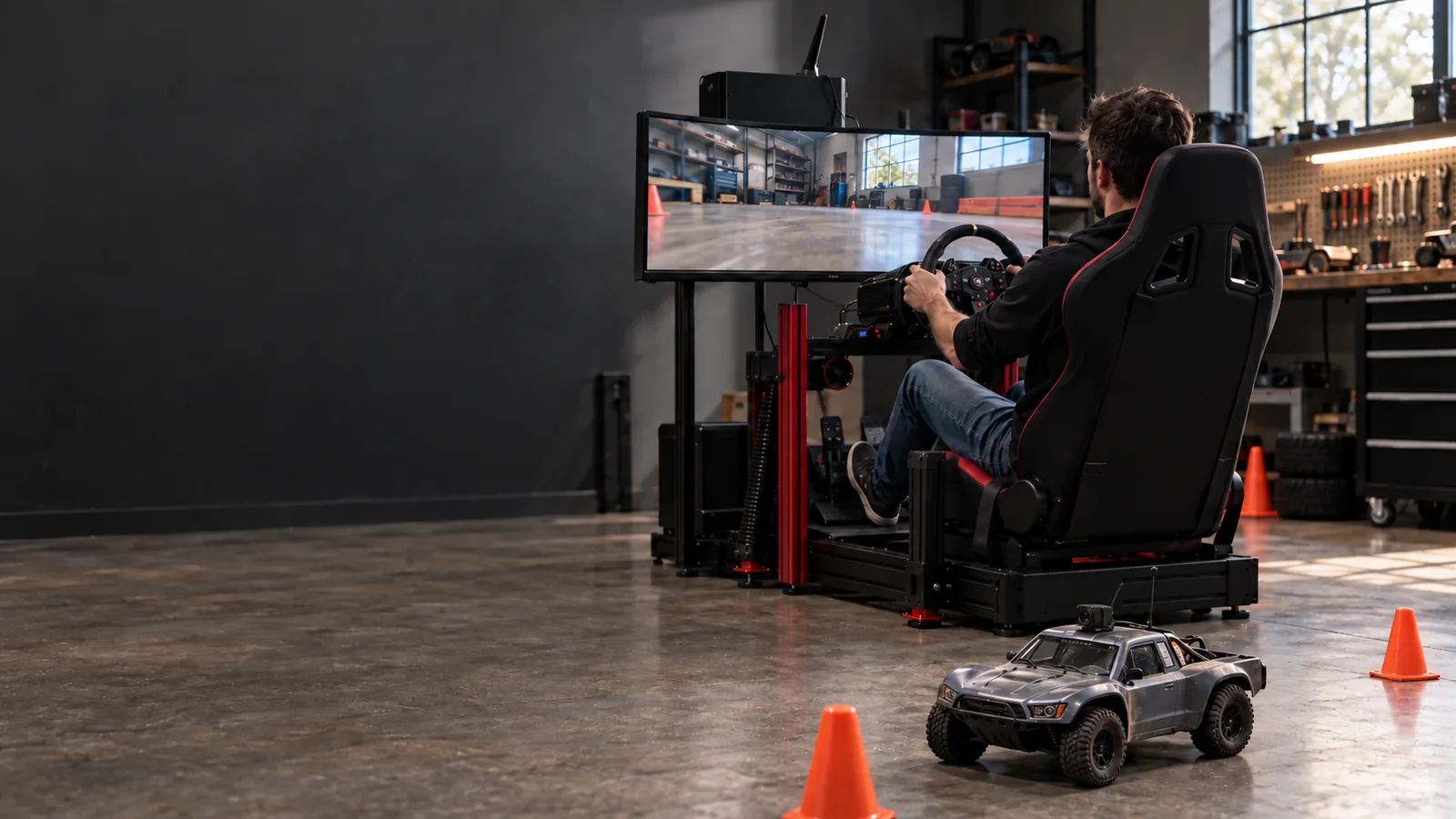
Drive your RC Car with your Racing Simulator!
Connect your racing peripherals to the PIT Transmitter and translate your inputs into RC control signals in real time.

PITLabs HUB
Desktop & Mobile App
Get notified when PIT Simbridge becomes available!
Key Features
No PC Needed
Drive your RC car directly — no computer required (for selected steering wheels).
No Receiver Needed
We provide the PIT Receiver — no need to buy one separately.
No Transmitter Needed
We provide the PIT Transmitter — no need for your original controller at all.
Firmware Updates
Update your PIT SimBridge firmware directly from the app to unlock new capabilities.
Add support for more steering wheels
New features requested by users
Bug fixes & improvements
Multi-Device Support
Connect your wheel base, pedals, and shifter independently.
Real-Time Transmission
Responsive, lag-free driving with high-frequency control data.
Profile System
Save, load, duplicate, import, and export configuration profiles.
Axis Calibration
Per-axis calibration with deadzone, inversion, and output range scaling.
Response Curves
Linear, Exponential, or Logarithmic curves per axis.
ESC Mode Presets
Built-in support for TRAXXAS, Standard, and Custom configurations.
Radio Calibration Wizard
Guided step-by-step wizard to calibrate your PIT Receiver.
Mobile App Control
Control and configure everything from the PIT SimBridge iOS/Android app — works in both PC Mode and Handle Mode (same WiFi network required).
Handle Mode (Logitech)
Connect your Logitech wheel directly to the transmitter — no PC required.
Addressable LED Control
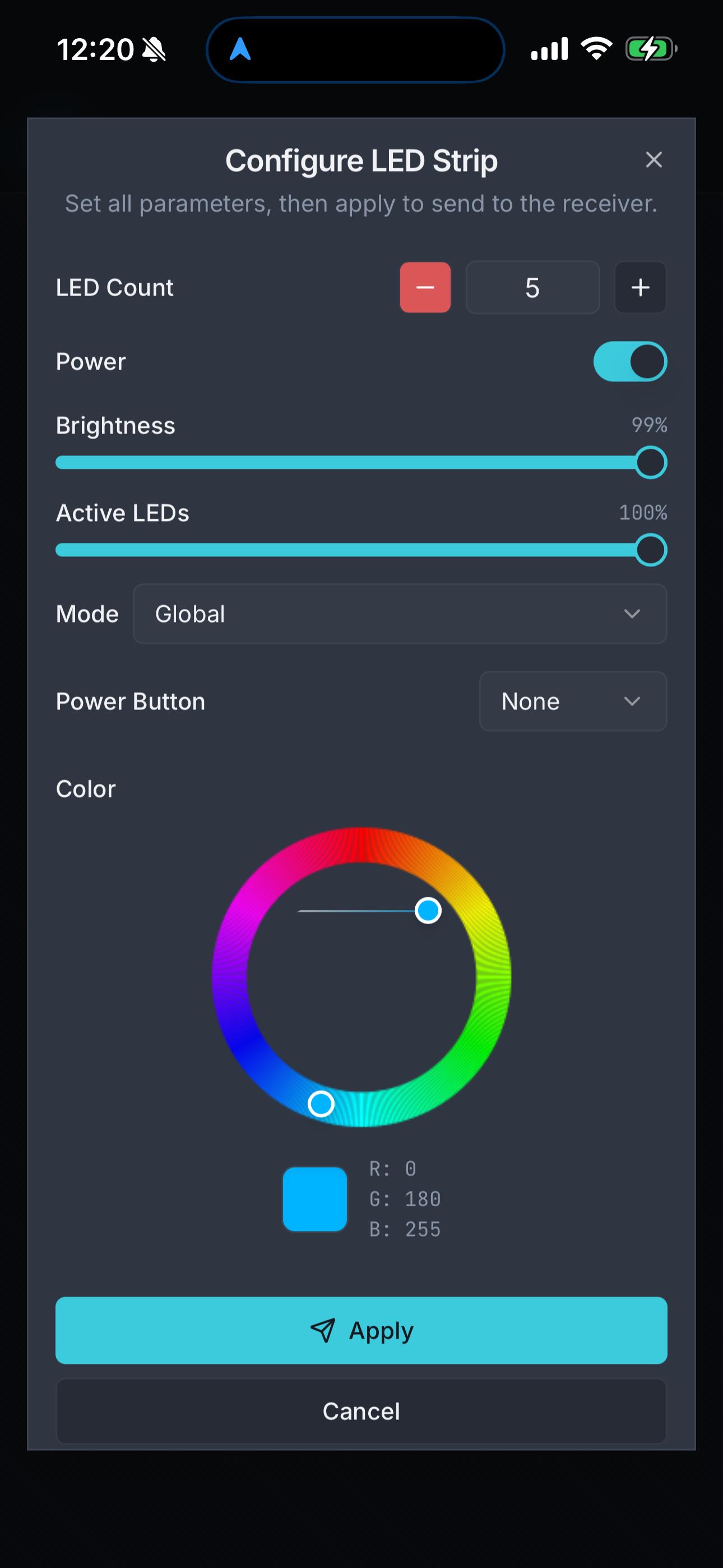
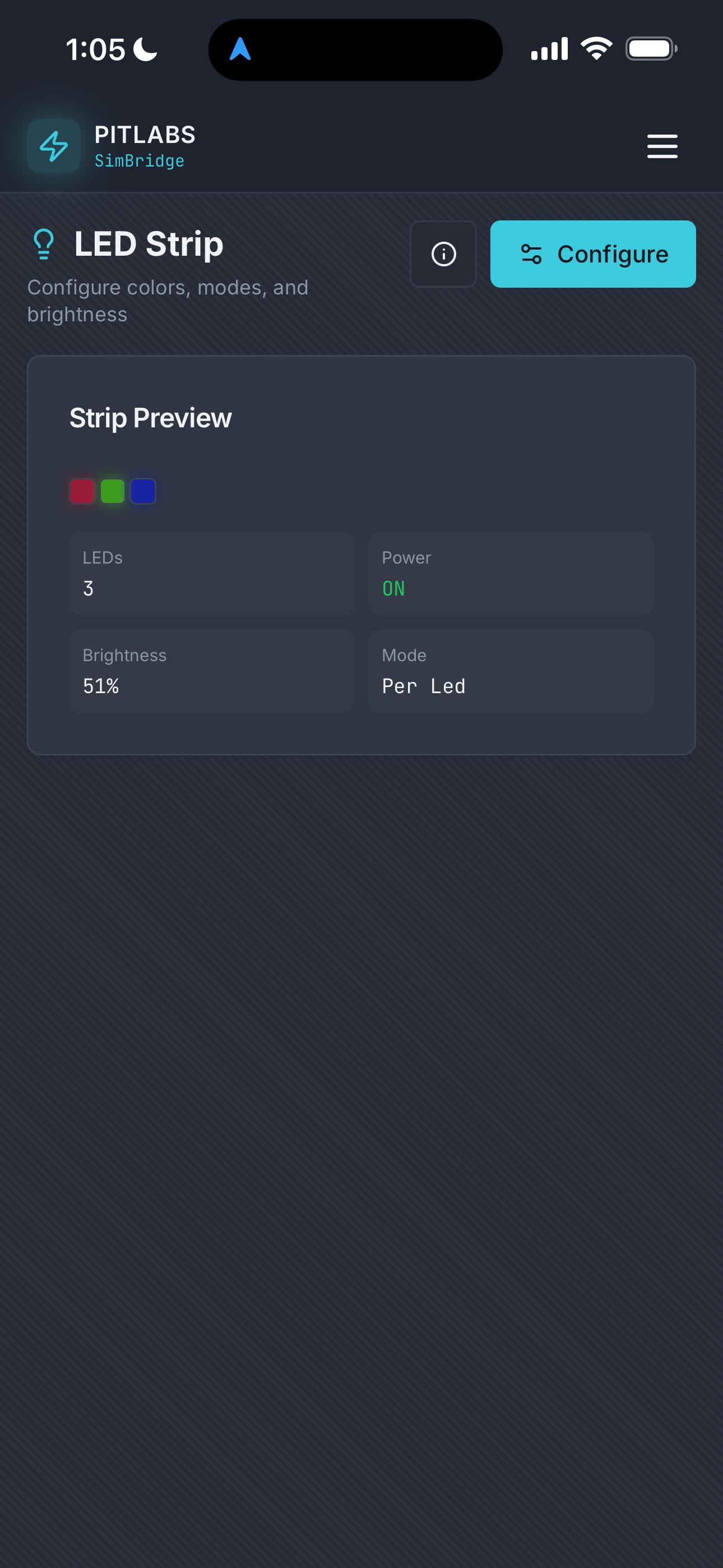
Control up to 50 addressable LEDs via CH4 of the PIT Receiver — configure colors, patterns, and effects from the mobile app.
Application Screens
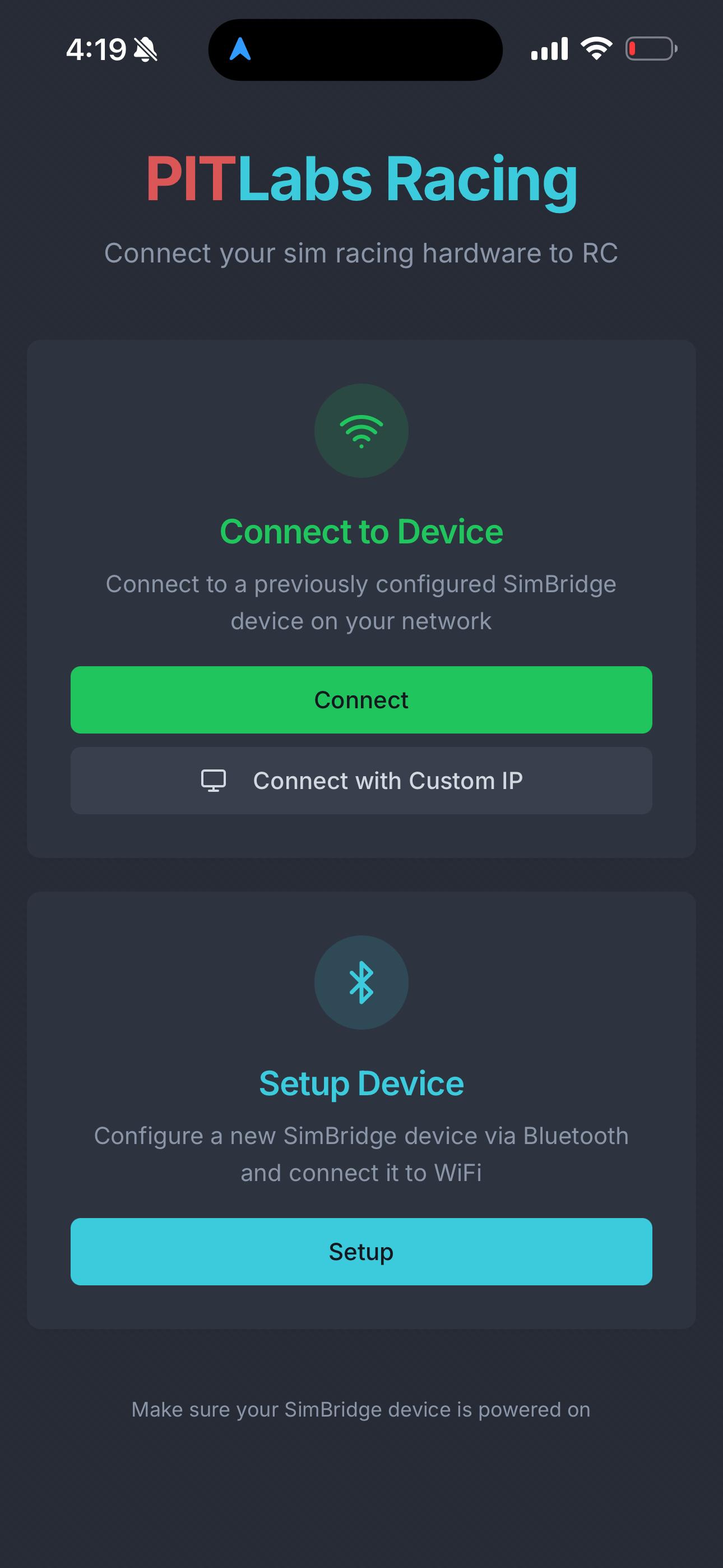
PIT SimBridge Mobile App
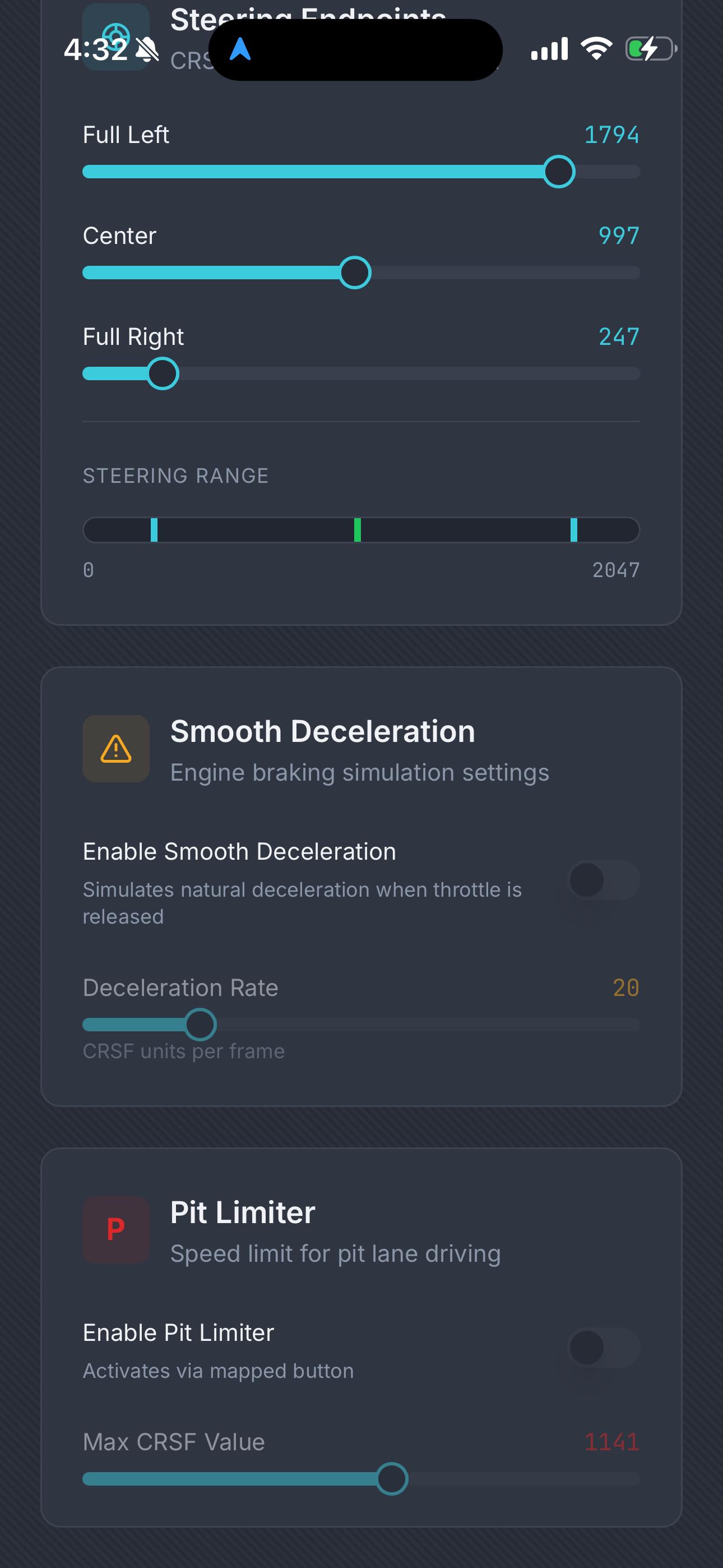
PIT SimBridge Mobile App
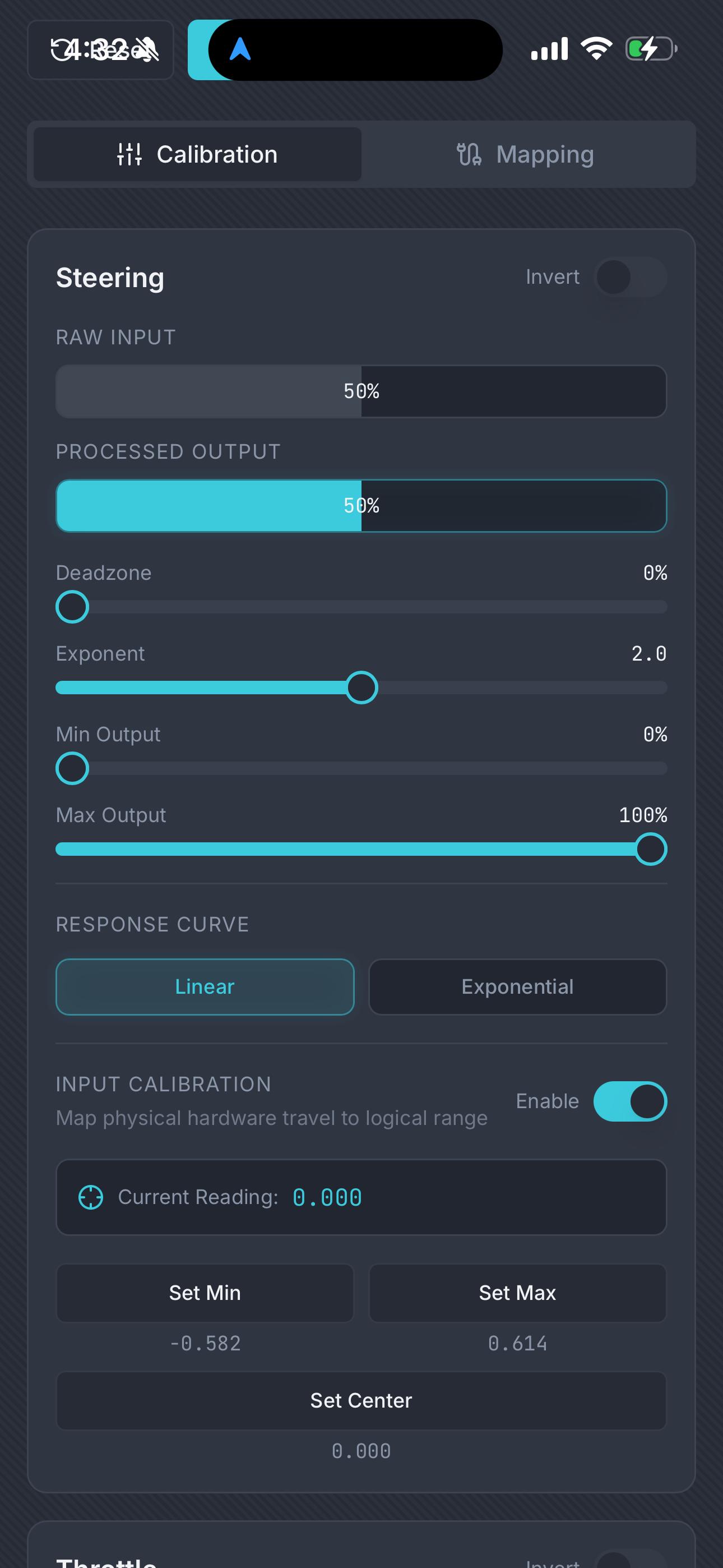
PIT SimBridge Mobile App
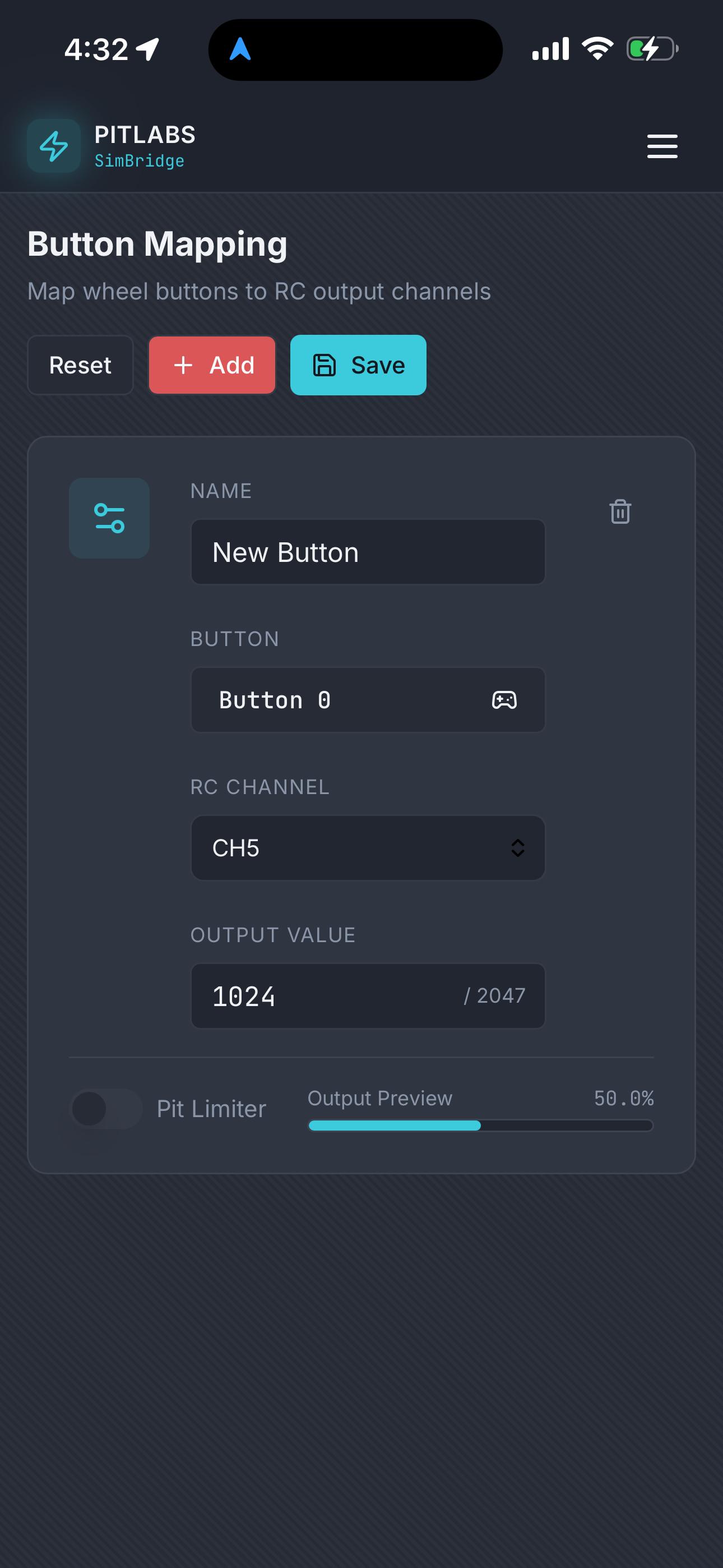
PIT SimBridge Mobile App
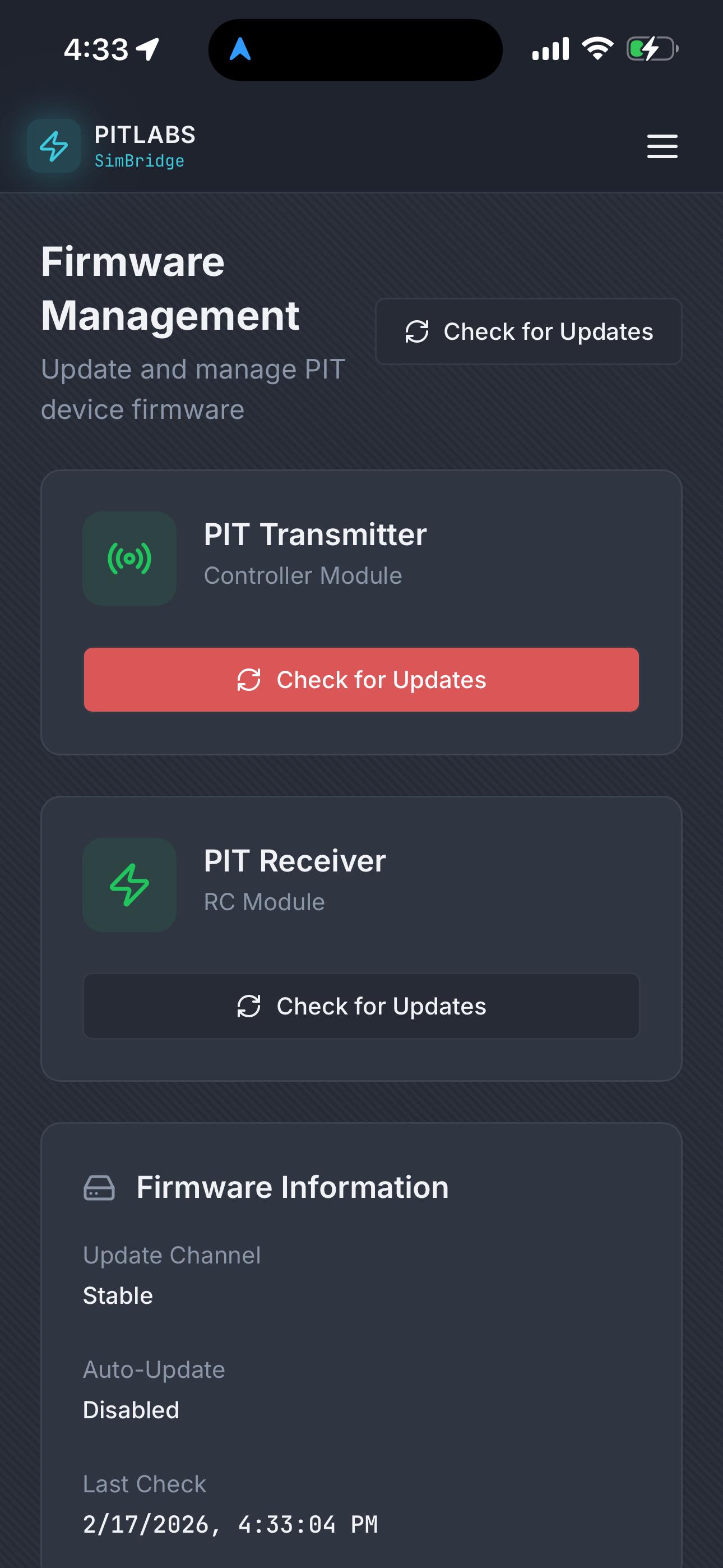
PIT SimBridge Mobile App
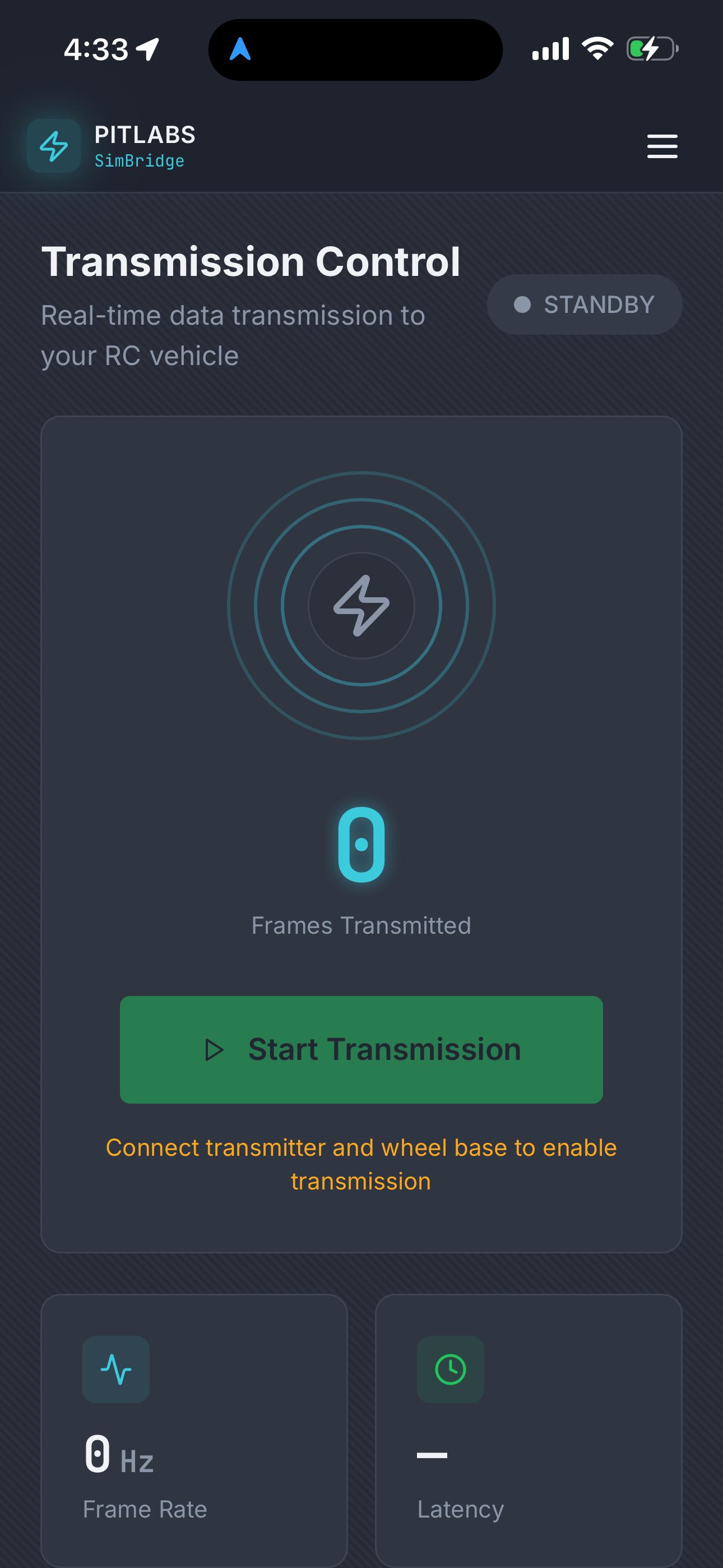
PIT SimBridge Mobile App
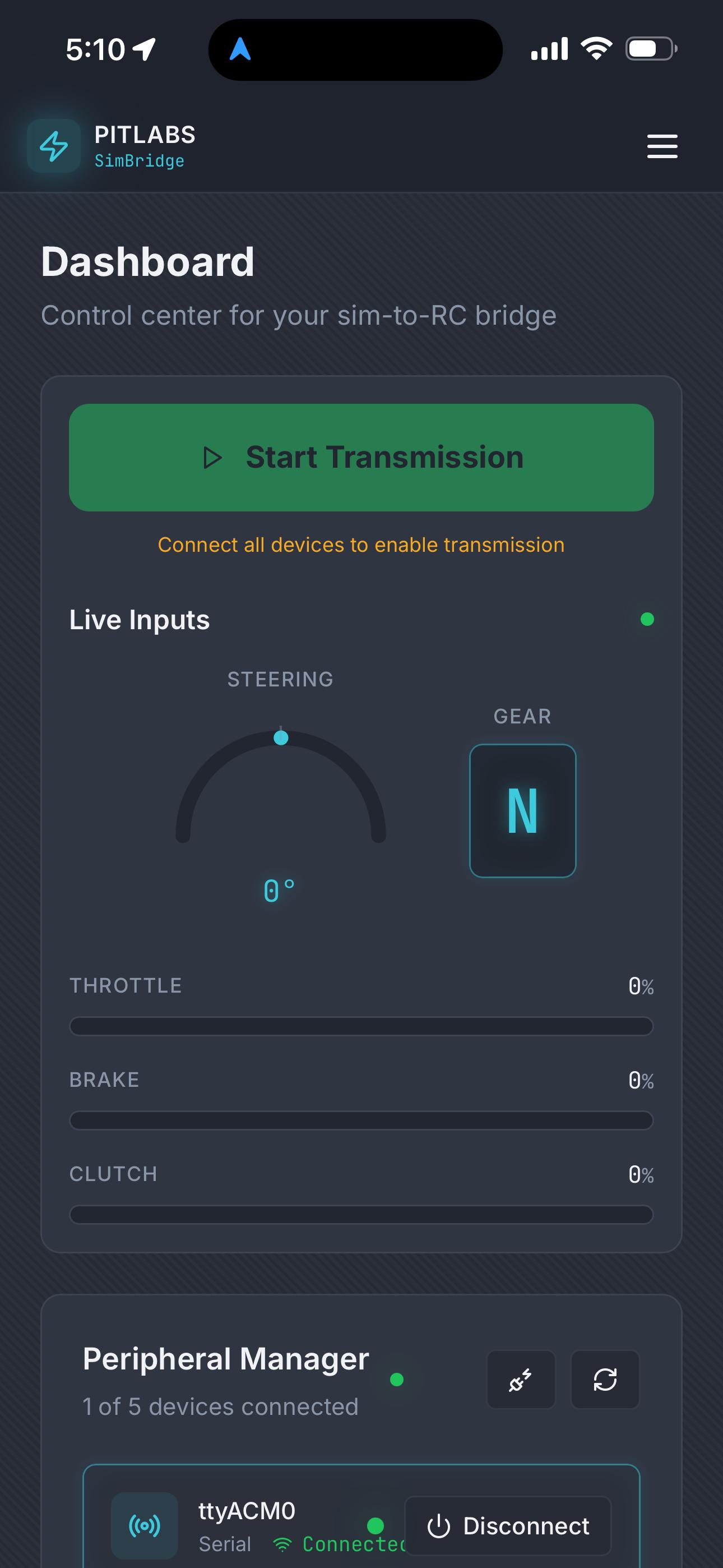
PIT SimBridge Mobile App
PIT SimBridge Mobile App
PIT SimBridge Mobile App
PIT SimBridge Mobile App
How It Works
PC Mode
All WheelsYour sim racing peripherals connect via USB to your PC.
SimBridge reads your inputs and processes them (calibration, curves, ESC mode, pit limiter, engine braking).
The processed signals are sent to the PIT Transmitter over USB.
The PIT Transmitter sends the signals wirelessly to the PIT Receiver.
The PIT Receiver, installed on your RC car, drives the car.
Use the PIT SimBridge mobile app (iOS/Android) to control settings — both devices must be on the same WiFi network.
Handle Mode
Logitech OnlyConnect your Logitech wheel directly to the PIT Transmitter via USB.
The transmitter reads your inputs and processes them internally.
Signals are sent wirelessly to the PIT Receiver.
The PIT Receiver drives your RC car — no PC required.
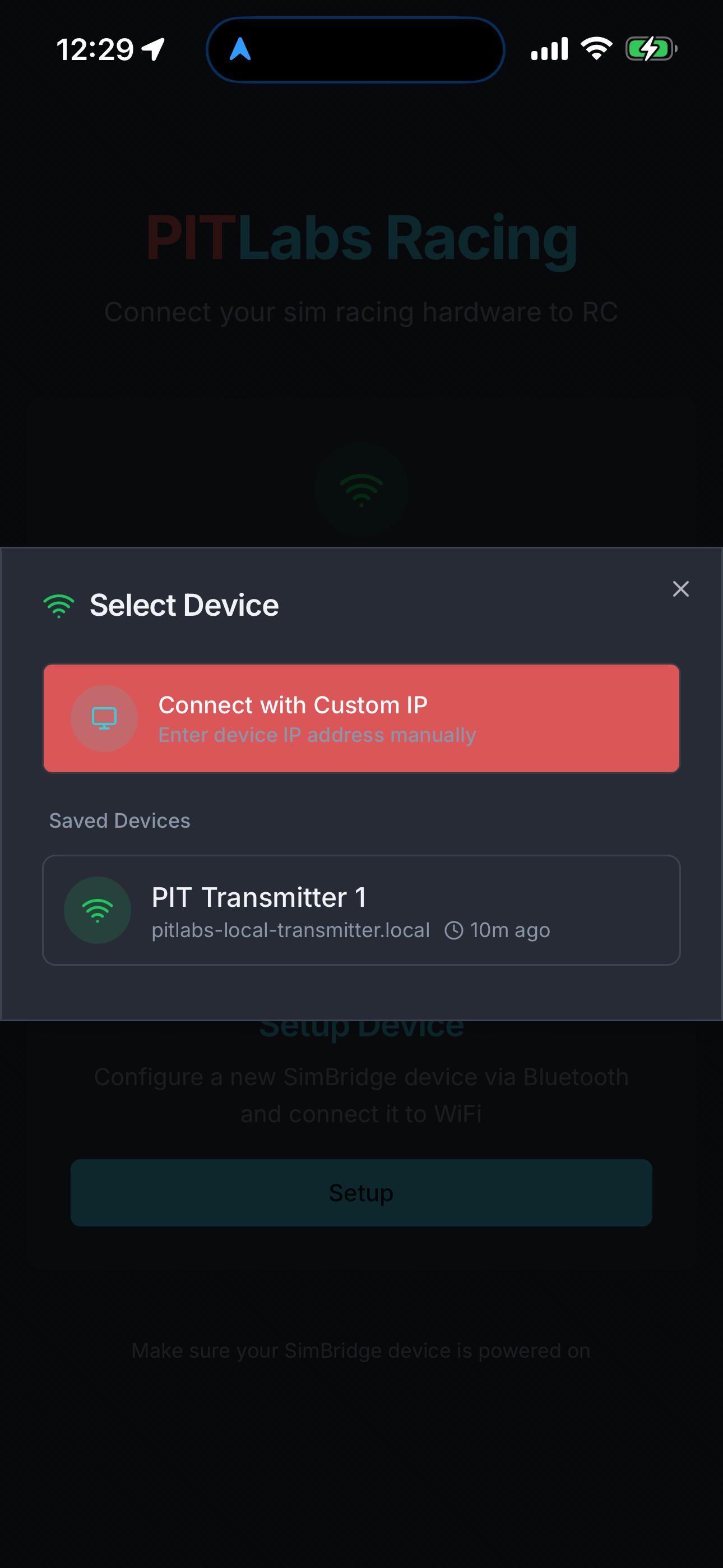
Use the PIT SimBridge mobile app (iOS/Android) to set up the transmitter via Bluetooth, then control it over WiFi.
Custom Installation Service
Don't want to install it yourself? We'll do it for you — including FPV camera setup and custom 3D-printed mounts.
Ship Your Car
Send us your RC car and we'll install the PIT Receiver, wire everything up, and ship it back ready to drive.
Miami Local Pickup & Drop-off
Based in Miami? We can pick up your car or you can bring it to our shop. We'll install everything and have it ready for you.
FPV Camera + Goggles
Add an FPV camera and goggles setup for an immersive first-person driving experience from your sim rig.
Custom 3D-Printed Mounts
We design and 3D-print custom mounting brackets tailored to your specific car model for a clean, secure fit.
Full PIT Receiver Install
Professional installation of the PIT Receiver with wiring, switch setup, and full testing before delivery.
FPV Goggles Configuration
We configure and tune your FPV goggles for optimal video feed, latency, and channel settings.
System Requirements
OS
Windows 10 / 11 (64-bit)
Hardware
PIT Transmitter + PIT Receiver
Input Devices
Any compatible wheel, pedals, or shifter (Fanatec, Moza, Logitech, Thrustmaster, etc.)
Connection
USB ports for transmitter and input devices
Supported Input Devices
| Brand | Tested Models | Mode |
|---|---|---|
| Logitech (older models) | G29 (PS3 Mode) — also covers G25, G27 | PC + Handle |
| Logitech (newer models) | G29 (PC Mode), G920, G923, PRO | PC + Handle |
| Fanatec | CSL DD, GT DD Pro, ClubSport series | PC Only |
| Moza | R5, R9, R12, R16, R21 | PC Only |
| Thrustmaster | T300, T500, TX, TS-XW | PC Only |
| Other | Any compatible wheel, pedals, shifter, or handbrake | PC Only |
Handle Mode allows you to connect your wheel directly to the PIT Transmitter without a PC. Currently only available for Logitech wheels.
Don't see your steering wheel listed? Send us an email at support@pitlabsracing.com and we'll work on adding compatibility.
Installation
PC Mode Setup
Download the PITLabs HUB installer above.
Run the .exe and follow the setup wizard.
Connect your PIT Transmitter via USB to your PC.
Launch PITLabs HUB and select SimBridge from the dashboard.
Connect your devices, configure your profile, and hit START.
Handle Mode Setup
LogitechDownload the PIT SimBridge app from the App Store or Google Play.
Connect your Logitech wheel directly to the PIT Transmitter via USB.
Power on the PIT Transmitter and open the mobile app.
Go to Setup and connect to the transmitter via Bluetooth.
Configure the WiFi connection so the transmitter joins the same network as your phone.
Start driving — no PC needed.
FAQ
PIT SimBridge — From sim rig to RC track.